
How to add a bot to your Discord server
To add a bot to a Discord server, choose the server during Discord authorization and approve the permissions request. You must own the server or have Manage Server permission.
Create a bot to addBuild your bot, then use the activation checklist to open its server invite.
Before you start
- Use a Discord account that owns the target server or has its Manage Server permission. If the server is not listed during authorization, ask its owner or a member with that permission to add the bot.
- Start with a test server or a quiet test channel when you can. Read the authorization screen before approving it: the app publisher chooses the permissions it requests.
Choose the right way to open the invite
For a bot you just made with Build Discord Bots, use the Add to server action in the creation result or activation checklist. That action opens the invite generated for that application; follow the checklist instead of building your own URL or copying credentials into a link.
For a bot you found elsewhere, use its publisher’s official install link or Discord’s App Directory. In Discord on desktop or in a browser, open the server menu, select Server Settings, then App Directory. Choose an app, read its Overview, select Add App, and choose to add it to a server when Discord offers that choice. Discord says the App Directory itself is available on desktop and browser.
Open the Build Discord Bots create wizard · Discord: using apps and the App Directory
Authorize the bot on desktop or browser
Checkpoint 1 of 3
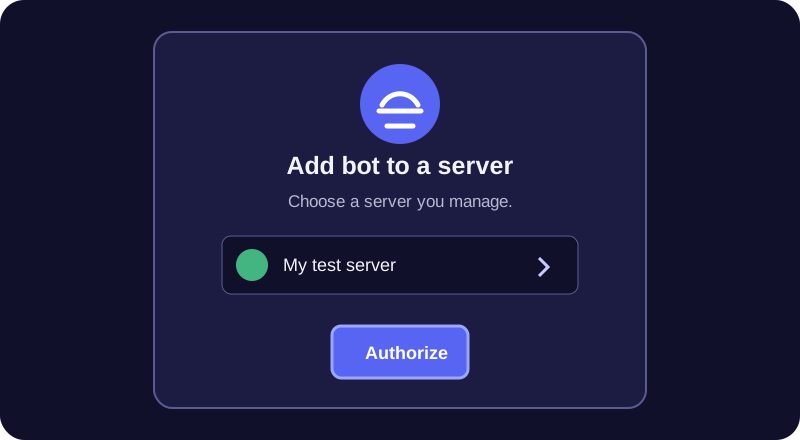
Select the intended server, review the requested permissions, then authorize the server installation. Sign in to the Discord account that manages the server. On the authorization page, use the server selector to choose the target server, read the permissions Discord displays, complete any verification prompt, then select Authorize. Do not approve a request for a different server just because it is the one preselected.
Some apps can be installed to a personal account as well as a server. An account install is not the same as adding a bot to a server. For this guide’s server setup, choose the server option and confirm the target server before authorizing.
Authorize the bot on a phone
Checkpoint 2 of 3
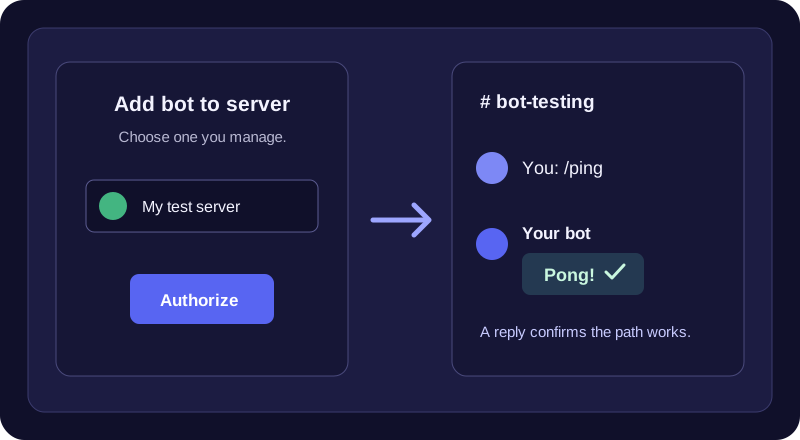
On a phone, open a trusted installation link, choose the server you manage, then tap Authorize. Open the trusted install or invite link in your phone browser, then sign in to Discord if asked. On the authorization page, select the server, review the requested access, complete any prompt, and tap Authorize. Return to Discord after the confirmation page appears.
Discord documents the App Directory as desktop/browser-only, so do not look for that menu in the phone app. Find the app on desktop or browser first, or use the app publisher’s official installation link on your phone. The authorization step still needs a Discord account that can manage the selected server.
If the server is missing or the bot does not appear, check these first
If the target server is absent from the selector, confirm that you are signed in to the right Discord account and that it owns the server or has Manage Server permission. If you manage several servers, repeat the authorization only after selecting the intended one; a successful authorization for another server does not add the bot to this one.
After authorizing, open the target server and look in its member list. Discord says a server-installed app appears there; it also lists server apps under Server Settings > Integrations > Bots and Apps. If it is present but cannot answer in a channel, check the bot role and that channel’s permissions before adding broader permissions. For a bot created here, return to its activation checklist as well: it reports server membership separately from hosting status.
Run one command to test it
Checkpoint 3 of 3
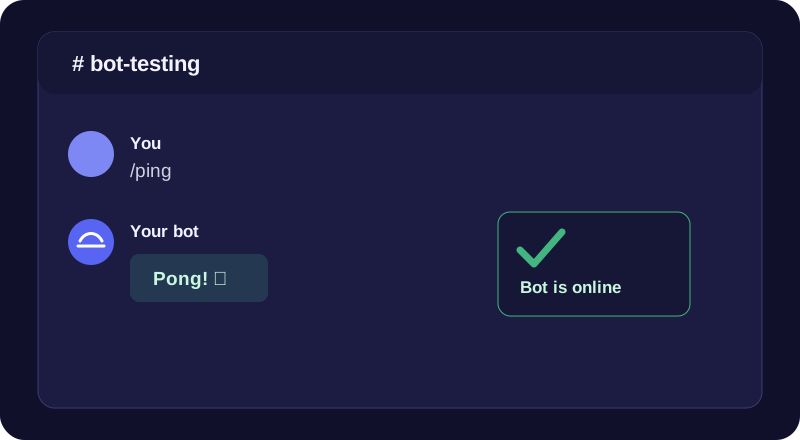
A command reply confirms that the bot is in the server and can respond in that channel. In a text channel where the bot can view and send messages, type / and choose one of the bot’s listed commands. A reply confirms that the server installation and that channel’s access are working. Every app has different commands, so use the command shown by its publisher if it does not list one in the picker.
For a Build Discord Bots bot with Tools & Utilities enabled, run /ping and look for its reply. If there is no response, first check the activation status, then the bot’s channel permissions and the module or command you enabled.
Frequently asked questions
Why is my Discord server not in the bot invite list?
Discord lists servers that the signed-in account can manage. Confirm you chose the right account and that it is the owner or has Manage Server permission; otherwise ask a qualified server administrator to add the bot.
Can I add a bot from the Discord App Directory on my phone?
Discord documents the App Directory as available on desktop and browser. You can use an app publisher’s trusted installation link on a phone to complete authorization, but find the App Directory app on desktop or browser first.
Where can I tell whether the bot was added?
A server-installed app appears in the server member list. Discord also lists server apps under Server Settings > Integrations > Bots and Apps.
Related modules
Related guides
Ready to configure your bot?
Create a bot to addBuild your bot, then use the activation checklist to open its server invite.